
Installation
How to find/show/unhide/reveal Developer Options on an Amazon Fire TV Stick, Fire TV Cube, or Fire TV Smart TV
How to Install and Set Up Apps on Your Fire TV Stick App for IPTV Smarters Pro
- Start by installing the Downloader app. This tool will enable you to easily load your IPTV player app onto your Firestick
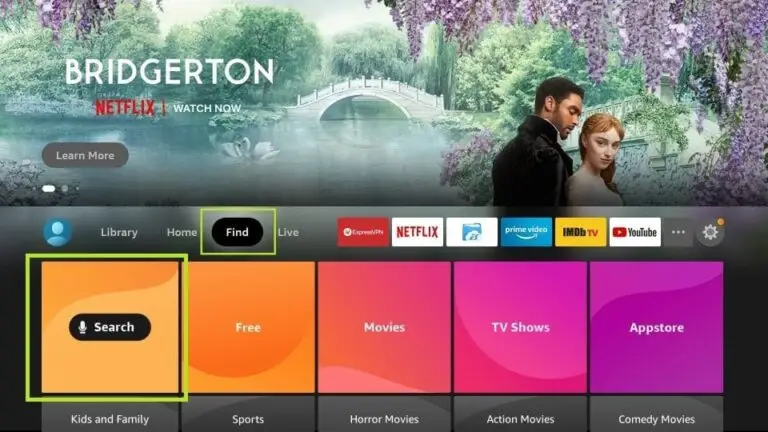
2.On your device’s home screen, navigate to the ‘Find’ section and select ‘Find’ > ‘Search’.
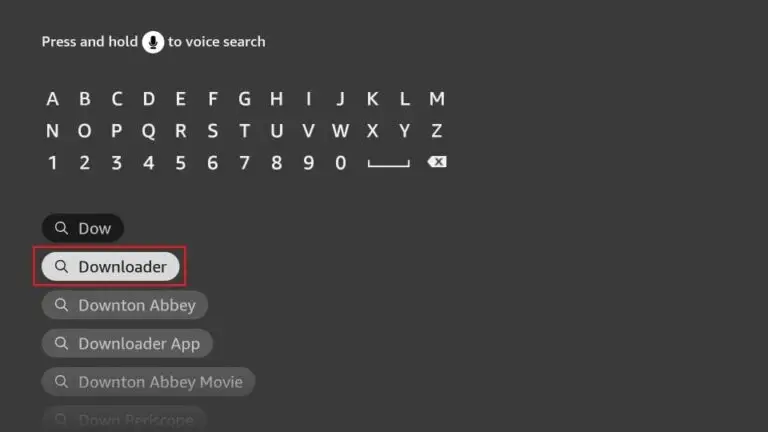
3.Search for the app by typing ‘Downloader’. Once it appears in the search results, select it. On the next screen, click the Downloader icon to download and install the app.
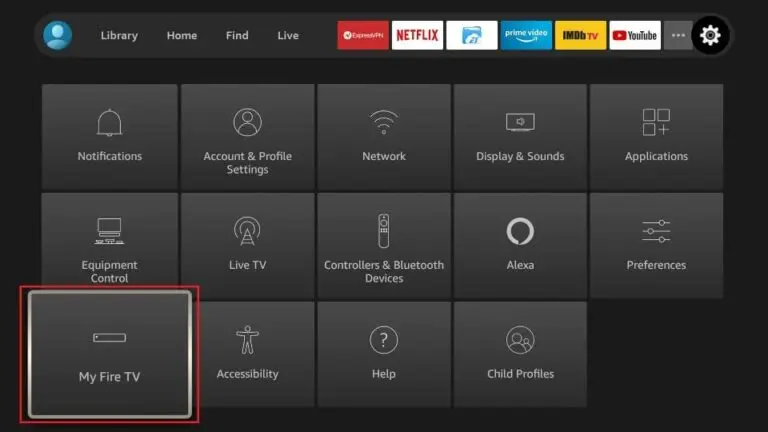
4.Once the Downloader app is installed, return to the Firestick home screen. In the menu bar, select ‘Settings
5.In the Settings, choose the option My Fire TV
6.On the next screen, select ‘Developer Options’. If you don’t see this option, go to ‘About’, highlight your Firestick’s name, and click it 7, 8, or 9 times to enable Developer Options. Afterward, press the back button on your remote to return to the previous screen, and the option should now be available
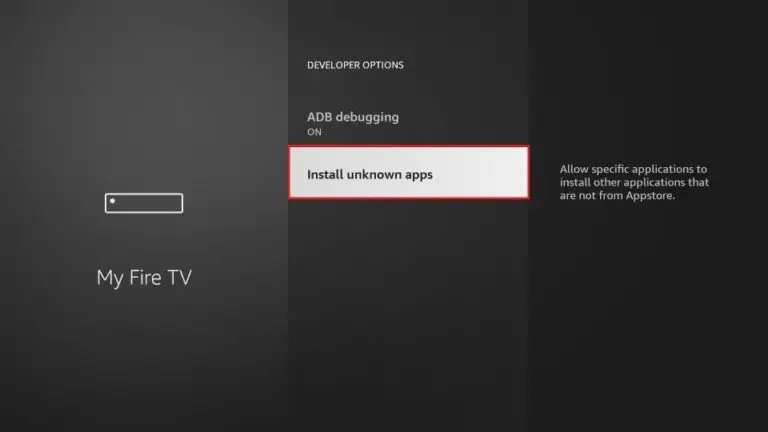
7. Click Install from unknown apps.
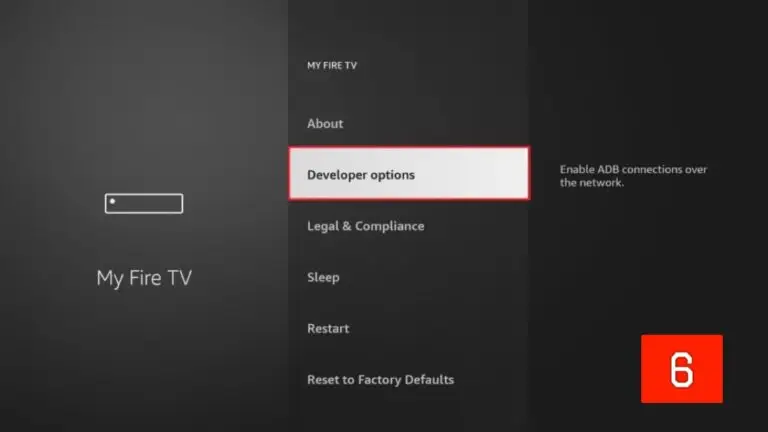
8. Click Downloader to change the status to ON.
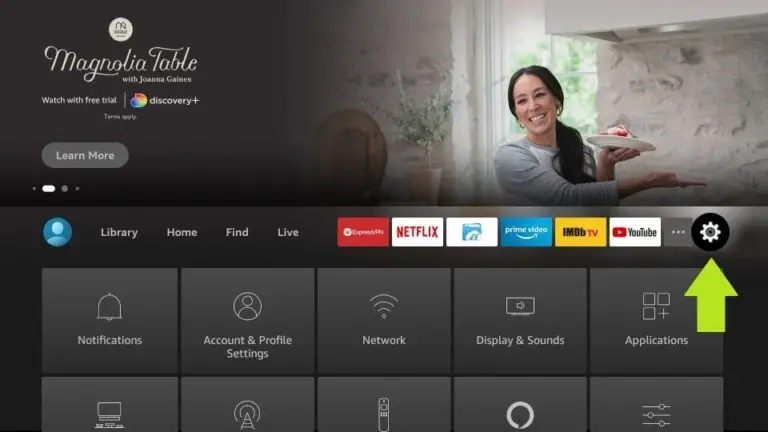
9. You have now placed your device in “Developer mode”and can install one our of our IPTV players.
Now, open the Downloader app. When you launch it for the first time, you’ll see a series of prompts—simply dismiss them until you reach the main screen
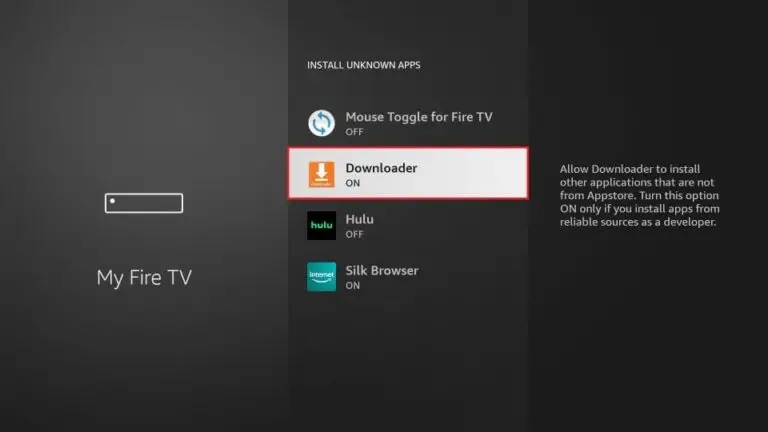
⚠️ First Time Installing From Unknown Sources?
If prompted to allow unknown apps:
On Android TV / Phone:
Go to Settings
Open Security
Enable Install Unknown Apps
Allow permission for Downloader
On Fire Stick:
Go to Settings
Select My Fire TV
Click Developer Options
Enable Apps from Unknown Sources
Allow Downloader
✅ Step 3: Use Downloader to Install Your IPTV App
Open Downloader
In the URL field, delete any existing text
Enter the numeric code provided by us
8199673Press Go ( arrow button)
Wait for the download to complete
Tap Install
After installation, tap Open
🎉 Your IPTV app is now installed!
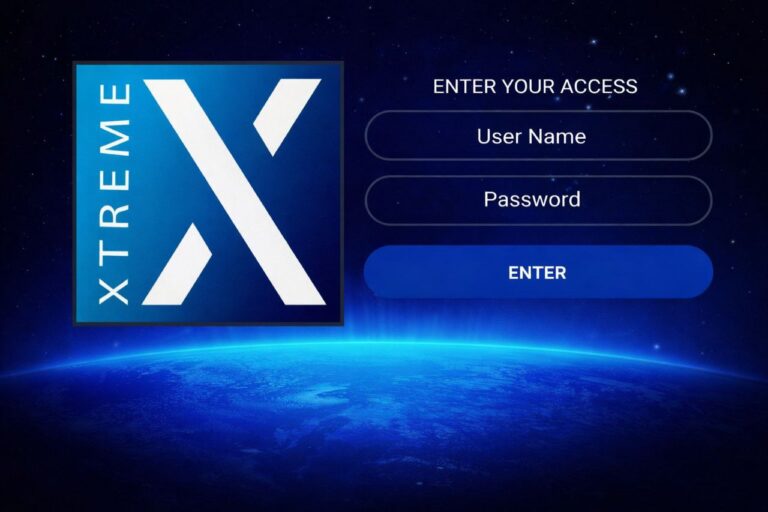
✅ Step 4: Complete the Setup
Now simply:
Open your IPTV app
Enter your login details
Load your playlist
Start watching 📺
🔗 Next Step:
To finish everything properly, follow our App Configuration Guide for full setup instructions.
📺 How to Install an IPTV App on Your Smart TV
Smart TVs do not support universal installer apps like Downloader in most cases.
The installation method depends entirely on your TV brand and operating system.
Here’s how to proceed based on your device:
🔹 1. Samsung Smart TVs (Tizen OS)
Samsung TVs do not allow sideloading or installing apps from unknown sources.
You can only install apps available in the Samsung App Store.
✅ How to install:
Press Home
Open Apps
Use the Search icon
Type your IPTV app name
(Example: IBO Player Pro, Hot Player)If available, click Install
📌 Many IPTV player apps are already available in the Samsung Store.
🔹 2. LG Smart TVs (webOS)
LG TVs also restrict installations to the LG Content Store only.
✅ How to install:
Press Home
Open LG Content Store
Go to Apps
Search for your IPTV player
(Example: Set IPTV, IBO Player Pro, Hot Player)Click Install
⚠️ Direct APK installation is not supported on LG webOS.
🔹 3. Android TV / Google TV
(Sony, Philips, TCL, Xiaomi, etc.)
✅ Good news! These TVs support both Google Play Store and Downloader, just like Android TV boxes or Fire Stick.
Option 1 – Install from Play Store:
Open Play Store
Search for your IPTV app
Install and open it
Option 2 – Use Downloader:
Install Downloader from Play Store
Open Downloader
Enter the numeric code provided to you
Tap Go
Wait for download → Tap Install
Open the app and log in
📌 Tip: This works exactly like on Fire Stick or Android TV devices.
🔹 4. Other Smart TVs
(Hisense, Toshiba, etc.)
Most use proprietary or limited operating systems like:
VIDAA
MyHomeScreen
Custom Linux-based systems
Important:
Some IPTV player apps may be available in their app stores
Direct APK sideloading is usually not supported
If your app is not available:
🔌 Best Solution:
Use a low-cost external device such as:
Android TV Box
Amazon Fire Stick
These devices (usually $30–$50) give you full IPTV app compatibility and allow installation via numeric code.
✅ Final Recommendation
If your Smart TV does not support your IPTV app directly, adding an Android TV device is the easiest and most reliable solution.
📥 How to Install Downloader on Any Android Device
(Android TV, Phone, Tablet, Android Box & Fire Stick…google devices )
The Downloader app lets you easily install IPTV apps (like TiviMate, IBO Player Pro, Hot Player, etc.) using a simple numeric code — no USB or PC needed.
✅ Step 1: Open the Google Play Store
On your Android TV / Phone / Tablet / Android Box:
Open Google Play Store
🔍 Search for: “Downloader by AFTVnews”
Select the official app
Tap Install
📌 On Amazon Fire Stick?
Since Google Play Store is not available:
Press Home
Go to Search
Type “Downloader”
Select Downloader by AFTVnews
Click Download / Install
✅ Step 2: Install the Downloader App
Tap Install
Wait for the download to complete
Tap Open (or find it later in your Apps section)
⚠️ First Time Installing From Unknown Sources?
If prompted to allow unknown apps:
On Android TV / Phone:
Go to Settings
Open Security
Enable Install Unknown Apps
Allow permission for Downloader
On Fire Stick:
Go to Settings
Select My Fire TV
Click Developer Options
Enable Apps from Unknown Sources
Allow Downloader
✅ Step 3: Use Downloader to Install Your IPTV App
Open Downloader
In the URL field, delete any existing text
Enter the numeric code provided by us
(Example: 8199673)Press Go ( arrow button)
Wait for the download to complete
Tap Install
After installation, tap Open
🎉 Your IPTV app is now installed!
✅ Step 4: Complete the Setup
Now simply:
Open your IPTV app
Enter your login details
Load your playlist
Start watching 📺
🔗 Next Step:
To finish everything properly, follow our App Configuration Guide for full setup instructions.
📱 How to Install an IPTV App on iPhone, iPad & Apple TV
Apple devices do not allow APK files or sideloading like Android.
You can only install IPTV apps directly from the official App Store.
Here’s how to set it up properly 👇
🍎 On iPhone & iPad (iOS)
✅ Step 1: Open the App Store
Unlock your iPhone or iPad
Open the App Store
Tap the Search icon
✅ Step 2: Search for Your IPTV Player
Type the name of your IPTV app, such as:
IBO Player
Hot Player
Smarters Player Lite
GSE Smart IPTV
📌 Important: Make sure you download the correct official version.
✅ Step 3: Install the App
Tap Get
Confirm with Face ID / Touch ID / Apple ID password
Wait for installation
Tap Open
✅ Step 4: Add Your IPTV Subscription
After opening the app:
Choose Login with Xtream Codes API
orAdd M3U Playlist URL
Enter the credentials we provided to you and tap Login.
🎉 Your channels and VOD will load automatically.
📺 On Apple TV (tvOS)
Apple TV works similarly but uses the TV interface.
✅ Step 1: Open the App Store on Apple TV
Turn on your Apple TV
Open the App Store
Use the Search option
✅ Step 2: Search for IPTV App
Search for:
Smarters Player Lite
IBO Player
Hot Player
Select the app and press Install.
✅ Step 3: Open & Activate
Launch the app
You may see:
An activation code
Or login fields
Enter your IPTV login details
Wait for content to load
⚠️ Important Notes for Apple Devices
❌ You cannot use Downloader on iOS or Apple TV
❌ You cannot install APK files
✅ Only apps available in the Apple App Store can be installed
If an IPTV app is not available in your country’s App Store, you may need to switch regions or use an alternative compatible app.
💻 How to Install IPTV on Windows (Using IPTV Smarters Pro or VLC)
You can watch IPTV easily on Windows 10 or Windows 11 using one of these two recommended apps:
IPTV Smarters Pro (Best full-featured option)
VLC media player (Simple & lightweight option)
🔹 Option 1: Install IPTV Smarters Pro on Windows (Recommended ✅)
This is the best option if you want:
Live TV
Movies & Series (VOD)
EPG (TV Guide)
Modern interface
✅ Step 1: Download
Open your web browser (Chrome, Edge, etc.)
Go to the official IPTV Smarters website
Download the Windows (.exe) version
✅ Step 2: Install
Open the downloaded file
Click Install
Wait for installation to complete
Launch the app
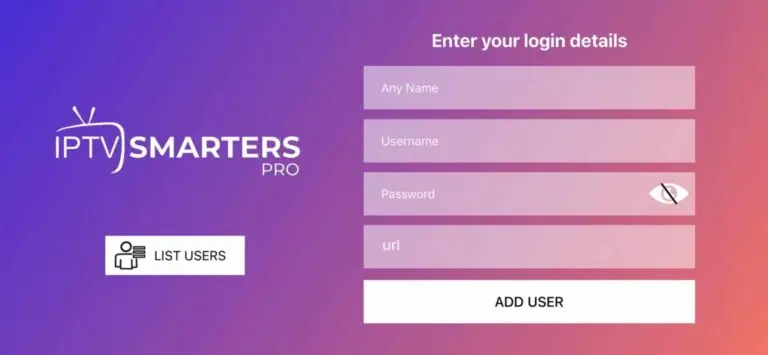
✅ Step 3: Login
When the app opens, choose:
Xtream Codes API (Recommended)
Enter:
Username
Password
Server URL
OR
Load M3U Playlist
Enter your M3U URL
Click Add User → Wait for channels to load → Start watching 📺
🔹 Option 2: Use VLC Media Player (Quick Setup ⚡)
VLC is perfect if you only have an M3U URL and want something simple.
✅ Step 1: Install VLC
Download VLC from the official website
Install it like any normal Windows program
✅ Step 2: Open Your IPTV Playlist
Open VLC
Click Media (top left)
Select Open Network Stream
Paste your M3U URL
Click Play
Your channels will start streaming.
⚠️ Note:
VLC does not fully support EPG and advanced IPTV features like IPTV Smarters Pro.
✅ Which One Should You Choose?
✔ Choose IPTV Smarters Pro for the best experience
✔ Choose VLC for quick and simple streaming
Once logged in, your IPTV service will load automatically and you can start watching instantly 🎉
📺 How to Set Up IPTV on MAG Box
MAG boxes are dedicated IPTV set-top boxes designed specifically for portal-based streaming.
Setup is quick and does not require app installation.
Popular models include:
MAG 254
MAG 322
MAG 424
✅ Before You Start
Make sure you have:
✔ Your Portal URL (provided by your IPTV service)
✔ Your MAC address (found on the sticker under the box or in settings)
✔ Stable internet connection
⚠️ Important: MAG boxes work using Portal URL + MAC address activation (not M3U or Xtream login).
🔹 Step 1: Find Your MAC Address
Turn on your MAG box
Go to Settings
Select System Settings
Choose About
You will see something like:
Send this MAC address to your IPTV provider for activation.
🔹 Step 2: Add the Portal URL
After your provider confirms activation:
Press Settings
Go to System Settings
Select Servers
Click Portals
In Portal 1 Name, enter: IPTV
In Portal 1 URL, enter the Portal URL provided to you
Click OK
Press Exit
Restart the device
🔹 Step 3: Restart & Load Channels
After reboot:
The box will automatically connect to the portal
Channels will load
Live TV will appear on screen
You’re ready to watch 🎉
🔄 How to Restart MAG Box
If needed:
Go to Settings
Select Reboot Portal
ORUnplug the power cable for 10 seconds and plug it back in
⚠️ Troubleshooting
No channels loading?
Check your internet connection
Verify the Portal URL is correct (no extra spaces)
Make sure your MAC address is activated
Portal not loading?
Restart router
Restart MAG box
Contact your IPTV provider
✅ Important Notes
MAG boxes do not support app installation like Android devices
They only work with Portal system
Changing MAC address manually is not recommended